Showing posts with label Google Drive. Show all posts

Wednesday, April 1, 2015

Using Google Photos in Google Drive for Desktop

As previously announced, Google Drive has a new section for Google Photos and the new feature is gradually rolled out. Here's how it looks in Google Drive for desktop.

You should see a message which informs you that the new feature is enabled: "New! Access your Google Photos from Drive".
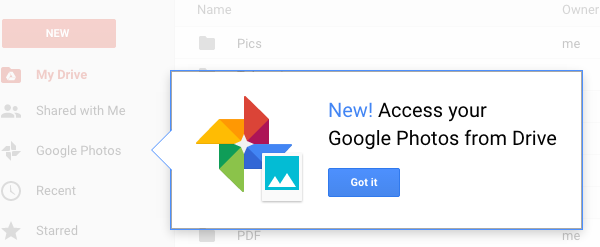

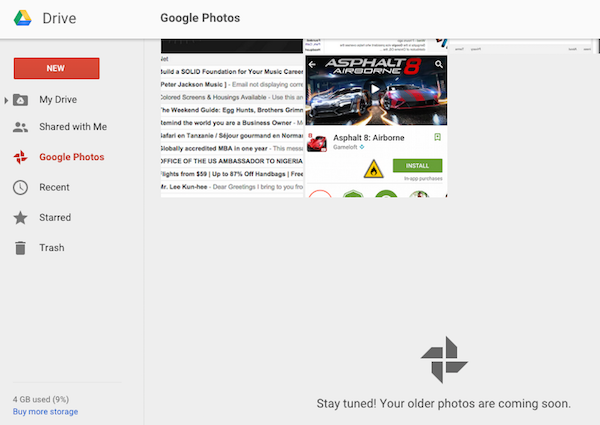
There's a Google Photos section in the sidebar. Click the new menu items and Google suggests to add the folder to My Drive to make it easier to organize your photos.
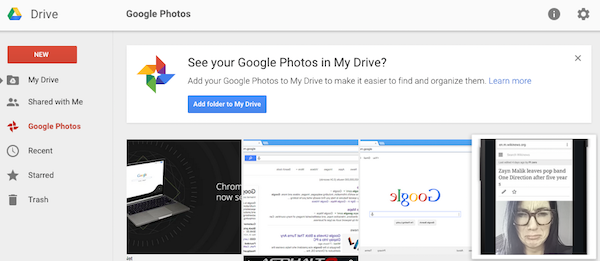

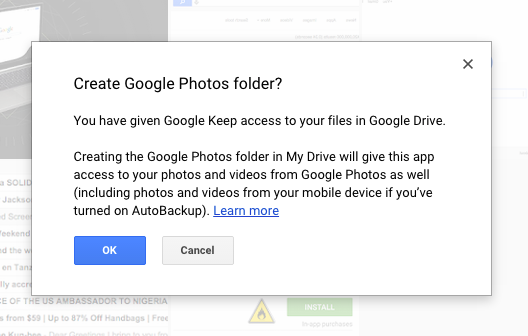
Click "Create folder" and Google Drive shows a strange message: "You have given Google Keep access to your files in Google Drive. Creating the Google Photos folder in My Drive will give the app access to your photos and videos from Google Photos, as well (including photos and videos from your mobile device if you've turned on AutoBackup)."

Google adds a Google Photos folder to My Drive, which groups your photos by year and month. For some reason, Google Drive doesn't show your albums. You can preview photos, download them, delete them, rename them, get permalinks, share photos with other people, move them to other folders.
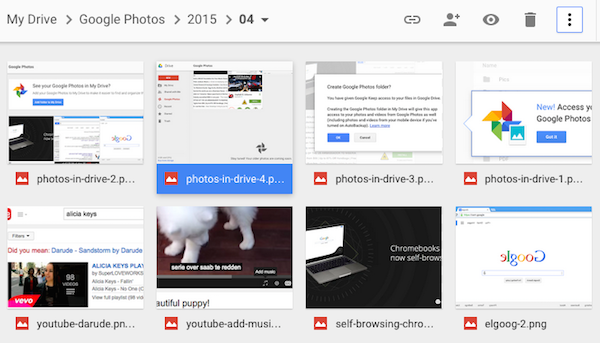

Photos and videos aren't imported instantly. Google Drive only shows a few recent photos and this message: "Stay tuned! Your older photos are coming soon."

Monday, March 30, 2015

Google Photos in Google Drive

For the past 4 years, Google+ was the place where you could find some of the most interesting and innovative Google features. From powerful photo editors to automatically enhanced photos and auto awesome effects, from video conferencing to live streaming, Google+ integrated and upgraded many standalone Google services. Google now wants to set free some of the Google+ features and make them available outside Google+.

Google Drive now lets you browse the photos and videos uploaded to Google+ Photos. There's a new Google Photos section inside Google Drive and it's interesting to point out that the name is Google Photos and not Google+ Photos.

"To get started, just look for the new Photos menu in Drive for Android, iOS and the web. From there you'll be able to manage your photos and videos alongside other types of files. For example, you can now add pictures of wedding venues and cakes to the same Drive folder as your guest list and budget," suggests Google.


You can add Google+ photos and videos to Google Drive folders, print, download, share, delete or rename them.

The new feature is gradually rolled out in Google Drive for the web and the mobile apps, so you may not see it yet.

{ Thanks, David King. }

Sunday, March 15, 2015

Shared With Me, Back in Google Drive

Google Drive has recently changed the name of the "Incoming" section, which is now called "Shared with me", just like in the old Google Drive interface.

"With the launch of the new Drive UI last year, we renamed the 'Shared with me' section to 'Incoming' and tweaked the functionality a bit. We've since heard feedback from people using the new UI that they miss the 'Shared with me' functionality, so today, we're bringing it back," informs Google.


"Incoming" was shorter, but "shared with me" is easier to understand. It's more obvious that the section includes the files and folders that other people have shared with you.

Saturday, February 28, 2015

Google Docs Viewer Page, No Longer Available

Google had a page that allowed you to quickly view documents online right from your browser. The Google Docs Viewer page was available at docs.google.com/viewer and drive.google.com/viewer. You could enter a document URL and Google generated a link to view it. This worked for a lot of file types: Microsoft Office files, PDFs, PostScript files and more.


While the page is no longer available as it redirects to Google Docs/Drive, you can still use the Google Docs Viewer. Paste this URL in a new tab:

https://docs.google.com/viewer?url=

and then paste the address of the document you want to view online. Here's an example:

https://docs.google.com/viewer?url=http://research.google.com/archive/bigtable-osdi06.pdf


The "embedded" parameter is still available: just add &embedded=true to the URL and the viewer will use an embedded mode interface. This is useful for embedding documents (use the <iframe> tag).

{ Thanks, +Sushubh Mittal. }

Tuesday, February 10, 2015

Get 2 GB of Free Google Drive Storage

Google promotes a security feature from the account settings page: security checklist. You can protect your Google Account by reviewing your recovery information (phone, email), your recent activity (a list of devices that have accessed your account in the last 28 days) and your account permissions (sites and applications to which you've granted permission to access your Google Account). There's also a setting that lets you disable access for less secure apps.


It only takes a few minutes to review this information and you'll get a reward: 2 GB of free Google Drive storage. The nice thing is that Google's bonus storage is not limited to 2 or 3 years like in other Google promotions: it's permanently added to your account. You need to complete the checkup by 17 February 2015 and you'll get the free storage at the end of the month.

"After you've gone through the checkup successfully, you'll see three green checkboxes (see below) that confirm you're eligible for the free storage and, more importantly, that you've taken steps to enhance your online safety. We'll be granting the storage automatically to everyone around 28 February 2015 and we'll send you an email when your adjustment is complete," explains Google. It's worth pointing out that "Google Apps for Work and Google Apps for Education users are not eligible for the bonus storage".

I got 4 green checkboxes for my account: recovery information checked, recent activity checked, access for less secure apps enabled, account permissions checked.

{ via Google Drive blog }

New PDF Icon for Gmail and Google Drive

Gmail has recently updated the icon for PDF attachments: it no longer uses the Adobe Reader icon and it opted for a basic text icon.


Here's the PDF icon used by Gmail since its release back in 2004:


Google Drive also shows the new icon for PDF files:


Now that browsers like Chrome and Firefox have built-in support for opening PDF files, Gmail and Google Drive let you open PDF files, Adobe Reader is less important and fewer people install Adobe's PDF software. That's probably the reason why Google picked a different icon.

{ Thanks, Joost Honig and Angelo Giuffrida. }

Wednesday, January 14, 2015

Updated Google Drive App for Desktop

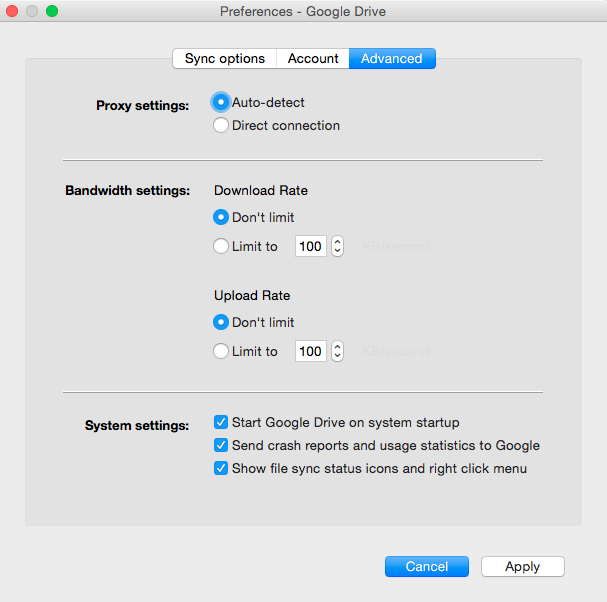
Google updated the Drive app for Windows and Mac. The latest version (1.19.8268.4572) brings new features: the Drive menu shows the latest synced files, there's a new three-dot contextual menu that shows the previous items from the standard menu and you can limit bandwidth for both downloads and uploads from the settings. It's interesting to notice that all these features have already been available in the Dropbox app.


{ Thanks, Eston Melton. }

Tuesday, January 13, 2015

Find Maps in Google Drive

Now that custom Google Maps are available in Google Drive, you may wonder how to find them. "My maps" is not included in the list of file types from the advanced search, but you can use the "opens with" feature that was added in the new Google Drive interface. Just click the arrow from the search box, select "Google My Maps" from the "opens with" list and click the search button. Google Drive will display all the maps you've created in Google My Maps. Another option is to search for app:"google my maps".


You can add some keywords to the query to find a map.

Friday, December 19, 2014

Add Google Docs, Sheets and Slides to App Launcher

You can now add Google Docs, Google Sheets and Google Slides to Google's app launcher from the navigation bar. Just visit each desktop app, click the app launcher and then click "add a shortcut" at the bottom of the pane. Use drag and drop to move the shortcut or hide it by dragging the shortcut to the "more" section. Make sure you are signed in to your Google Account to be able to customize the app launcher.


I added Docs, Sheets and Slides to the app launcher, so I can quickly open the apps from almost any Google service.


To switch between Google's Office apps, you can also use this menu:


{ via +Google Drive }

Tuesday, December 16, 2014

Add Google Drive Files as Gmail Attachments

You can now attach Google Drive files to Gmail messages. When you compose a message, click the Drive button, pick a file and select "insert as attachment" at the bottom of the pane. Then click "insert" and the file is added as an attachment, not as a link. You can only use this feature for files that haven't been converted to Google's formats.


Here's an example of attachment from Google Drive:


If you pick a file that's too big, you'll get this error message: "Your message could not be saved because it exceeds the maximum size of 25 MB. Try removing an attachment."

"There are now more ways to share Drive files with friends and family through Gmail, without having to worry about accidentally removing their access. By selecting the 'Insert as Attachment' option from Drive you'll be able to attach non-Google files directly to your Gmail message. Now you can be sure your friend will always have that great candid photo from your weekend getaway, or the PDF for your aunt's fruitcake recipe (do people actually eat Fruitcake?) even if you delete it from your Drive," informs Google.

Google Slides Imports OpenDocument Presentations

Google Drive's support for OpenDocument files has never been a priority for Google. Until today, you couldn't even open .odp files in Google Slides. "We now offer support for importing all three major ODF (Open) file formats: .odt files for documents, .ods for spreadsheets, and .odp for presentations," informs Google.


An interesting article from Computer World UK offers more information about Google's support for ODF:

"Magnus Falk, deputy CTO for HM Government, told the audience that the decision to adopt ODF (alongside HTML and PDF) as the UK government's required document format is now well in hand. (...) As a result, Google faces significant pressure securing government business in the UK – including in the health and education sectors – now that ODF is a requirement. The support for ODF in Google's products is weak and uneven. (...) Chris DiBona, head of open source at Google, told the PlugFest audience that support for exporting ODS and ODT files in ODF 1.2 format (the one used by all modern suites including MS Office and LibreOffice) is now under development. He also said that support for ODP presentations was under development and could be ready as soon as summer 2015. (...) DiBona explained that Google's internal metrics suggest to product groups there is little use of the existing ODF facilities, but he admitted that may be because of both the poor quality of the import and export, the weakness of the viewer implementations (which fail to display many aspects of ODF documents) and the lack of integration of the collaboration mechanisms into ODF."

Wednesday, December 10, 2014

My Maps in Google Drive

Custom maps created in Google My Maps are now saved in Google Drive. You can also create custom maps from Google Drive by clicking the "New" button, then picking "More" and "Google My Maps".


"Over the next week, all the maps you've created will also be accessible in Google Drive, so you can easily organize, manage and share them," informs Google. For now, I've only been able to find new maps, not the maps created before the Drive integration.

Wednesday, December 3, 2014

Edit Office Gmail Attachments in Google Drive Apps

Gmail now lets you edit Microsoft Office attachments with a single click: mouse over an attachment and click "Edit with Google Docs" for Word documents, "Edit with Google Slides" for PowerPoint presentations or "Edit with Google Sheets" for Excel spreadsheets. "You can then start editing and enjoying the full benefits of a single document to keep track of, access from anywhere, and full revision history," informs Google.


When you click a Gmail attachment, Google lets you preview its content inside Gmail. You can also save the file to Google Drive, but it's not converted automatically to a format that can be edited by Google's apps.

Google Docs, Slides and Sheets now support "15 new Office formats - including presentation show files (PPS, PPSX), macro-enabled files, and template files - all with improved charts, images, and tables support." Unfortunately, macros will be removed from macro file formats upon conversion. Here's the full list of new formats that can be converted:

* DOT, DOTX, DOTM, DOCM - Word files
* XLT, XLTX, XLTM, XLSM - Excel files
* POT, POTX, POTM, PPTM, PPS, PPSX, PPSM - PowerPoint files

If you'd like to edit files without converting them to Google's formats, you can use this Chrome extension.

Thursday, October 30, 2014

Google's PDF Reader for Android

The latest version of Google Drive for Android added a lot of new features: a new interface based on Material Design, a better search feature that shows results as you type, custom message for sharing files. "You can also turn on link sharing to make the file public and set access to view, comment, or edit. This automatically copies the link to the clipboard and allows you to paste it wherever you want."


Google Drive for Android now also includes a PDF reader. The application still uses the default PDF reader installed on your device, but you can now select Drive PDF Viewer. It works offline and it can be used from any other Android application, not just from Google Drive.


Google's PDF viewer is pretty basic: it has a search feature, it lets you select and copy text, upload files to Google Drive, print files and share them.


Updates are gradually rolled out, so you may not be able to install the latest version of the Google Drive app from Google Play. Android Police has a link to the APK file.

Wednesday, August 27, 2014

Special Characters Search Engine in Google Drive

Google's Drive desktop apps have an updated dialog for inserting special characters. If you open a document, spreadsheet or presentation, go to the Insert menu and click "Special characters", you have many ways to find a special character: use categories, search by keyword (example: arrow), enter the Unicode code point (example: 2195) or draw the character.


"We have launched a new version of the special character picker in Google Docs, Slides, and Drawings, making it easier for people to find characters and symbols — like arrows, shapes, or non-Latin characters — to insert into their content. The new picker now supports keyword search as well as free form input, so editors can draw the symbol that they have in mind and the picker will return available characters that resemble the drawing," informs Google.

Here's another example from Google Drive's Google+ page:

Monday, August 25, 2014

Edit Office Files in Docs, Sheets and Slides for iOS

Google released the Slides app for iOS and added native Office file editing to Docs, Sheets and Slides for iOS.

"You can truly get stuff done from any device — your iPhone, iPad, Android phone, Android tablet, laptop or desktop computer. Any change you make on any of these devices is saved automatically, so you can pick up right where you left off any time, anywhere that you can sign in. The Docs, Sheets and Slides apps come with offline editing built right in. Just make the files you want to edit available offline. Any changes you make offline get automatically synced when you reconnect, just like when you make offline edits from your computer. And while converting Office files to Docs, Sheets and Slides is a cinch, the new iPhone/iPad apps also let you edit Office files directly - just like on the Android apps and the web," informs Google.


Native Office editing using the Office Compatibility Mode is a great feature and now Google's productivity apps for iOS are more powerful and can better compete with Microsoft Office.

Saturday, August 2, 2014

Google Drive Viewer Changes

I've mentioned a few weeks ago that there's a new interface for Google Drive previews and Gmail attachment previews. There's more space for content, the toolbar disappears when you're not using it, you can click "open" to open the file using the default app.

If you use the new Google Drive UI, Google Drive Viewer is no longer available in the "open" menu and you need to click the "pop-out" icon next to the "x" icon to open Google Drive Viewer. Most of its functionality is available from the preview interface, but there are some missing features. For example, adding comments.


The Google Apps blog mentions that "as part of this change we will remove support for adding file-level commenting of non-Google file formats. This change doesn't impact comments in Google Docs, Sheets and Slides, and existing comments on non-Google formats will be retained and available to view." The commenting feature is still available for me in the "Edit" menu when opening a PDF file or other non-Google file types:


Wednesday, July 30, 2014

Google Drive's Quota Page

The new Google Drive interface has a cool feature: it shows all the files you've uploaded, sorted by file size. Mouse over the storage stats at the bottom of the page ("X GB of Y GB used"), click "Drive" and you'll get to this page that shows the quota used by your files, so you can quickly delete some of the files you no longer need. Interestingly, the URL: https://drive.google.com/#quota also works in the old Google Drive interface.


The page doesn't include the documents, spreadsheets, forms, presentations, drawings created with Google Docs, Sheets, Slides, Drawings or converted to the Google formats.

The old Google Drive interface also had this feature. You had to click an arrow icon next to "owner", pick "quota used" and sort by quota. Google Drive only displayed the files from the current folder, so you had to use this URL: https://drive.google.com/#all to see all your files. The new quota page is more convenient, but the new Google Drive interface no longer lets you sort folders by quota used.

Sunday, July 27, 2014

New URL for Google Docs

If you go to docs.google.com, you might see this message: "Soon, docs.google.com will start taking you to the Google Docs application, not Google Drive. You can always get to Google Drive by using drive.google.com." Until now, docs.google.com redirected to drive.google.com without displaying this message.


"You may be using docs.google.com to access Google Drive. With the launch of the new Google Docs editors home screens, docs.google.com will redirect to the Docs home screen, where you'll find all of your Google Docs and Word files," explains Google.

Some useful URLs:

* docs.google.com, google.com/docs - Google Docs (the first URL still redirects to Drive for now)
* sheets.google.com, google.com/sheets - Google Sheets
* slides.google.com, google.com/slides - Google Slides

Friday, July 18, 2014

The New Google Drive for Desktop

I just got the new Google Drive desktop interface. Google shows a small box that asks you to try the new Drive. You need to go to the Settings drop-down and click "Experience the new Drive".


Here's the welcome page with a small accessibility icon:


The new interface has a lot in common with the new desktop home screens for Docs, Slides and Sheets. All of them use the new Material Design.


Here's the contextual menu:


When you click a file, it's selected and the info pane shows more information about the file. There are no more checkboxes: click to select, double click to open.


There's an updated "new" button that lets you upload files and files, but also create new documents.


You can now resize the sidebar:


It's easier to select files: click and drag your mouse over several files or press Shift to select a range of files or press Ctrl to select non-consecutive files.