Showing posts with label YouTube. Show all posts

Friday, April 24, 2015

Google+ Notifications for YouTube Uploads

Ondřej Pokorný, a reader of this blog, noticed a Google+ notification about a video uploaded to one of his YouTube subscribed channels: It's Okay To Be Smart. It's a YouTube notification and it even has a special icon.


I don't remember seeing notifications like this. Google+ shows notifications when your own YouTube videos receive comments and you can disable this in the settings.

Danny Fratella, Top Contributor for the YouTube Help Center, explains that "the notifications that subscribers get in their Google+ Notifications are based on their previous engagement with your videos and your channel. If YouTube's algorithms notice that they're watching a lot of your content, they're more likely to receive notifications when you upload new videos. There isn't anything you can do to force this notification upon your subscribers."

{ Thanks, Ondřej. ]

YouTube Tests Borderless Search Box

YouTube tests a new search box. There are a few changes: YouTube no longer uses a search button, a small icon is placed next to the search box, there's a "Search YouTube" message inside the search box until you type a query and the search box doesn't have a border.


Here's the regular YouTube interface:


How to enable the experimental search box? If you use Chrome, Firefox, Opera, Safari or Internet Explorer:

1. open youtube.com in a new tab

2. load your browser's developer console:

* Chrome or Opera 15+ - press Ctrl+Shift+J for Windows/Linux/ChromeOS or Command-Option-J for Mac

* Firefox - press Ctrl+Shift+K for Windows/Linux or Command-Option-K for Mac

* Internet Explorer 8+ - press F12 and select the "Console" tab

* Safari 6+ - if you haven't enabled the Develop menu, open Preferences from the Safari menu, go to the Advanced tab and check "Show Develop menu in menu bar". Close Preferences and then press Command-Option-C to show the console.

* Opera 12 - press Ctrl+Shift+I for Windows/Linux or Command-Option-I for Mac, then click "Console".

3. paste the following code which changes a YouTube cookie:

document.cookie="VISITOR_INFO1_LIVE=0pBX9w1K8gk; path=/; domain=.youtube.com";window.location.reload();

4. press Enter and close the console.

To disable the experiment, use the same instructions, but replace the code from step 3 with this one:

document.cookie="VISITOR_INFO1_LIVE=; path=/; domain=.youtube.com";window.location.reload();

{ Thanks, Matthew Bohr. }

Find 360-Degree YouTube Videos

Now you can quickly find 360-degree YouTube videos. Open YouTube's desktop site or YouTube's Android app, type a query, click the Filters button and select 360° from the Features section. Here's an example for [Finland].


In the Android app, tap the Filters button next to the search box and select 360°.


Here are the search results for [beach]:


For now, 360-degree spherical videos are only fully supported in Chrome for desktop and the YouTube app for Android.

Tuesday, April 21, 2015

Old YouTube Apps Will Stop Working

Yesterday YouTube retired the old version of its main API (Data API v2). Data API v3 was launched in 2012, bringing some new features like comment management, editing channel sections and retrieving user ratings. The old version was deprecated last year and developers were encouraged to migrate to the new API.

YouTube will start to show this warning video and next month "v2 API calls except for comments and captions will receive 410 Gone HTTP responses".


Unfortunately, there are still devices that won't be updated, so many people will no longer be able to use the built-in YouTube apps from Apple devices that run iOS 5 or earlier (iPhone 1st generation, iPhone 3G, iPad 1st generation), Apple TV (1st and 2nd generation), Google TV 2 or earlier, old Smart TVs and game consoles. Devices affected were "manufactured in 2012 and earlier, including Sony TVs & Blu-ray Discs, Panasonic TVs & Blu-ray Discs, older iOS devices, and devices running older versions of Google TV."

Mobile devices and smart TVs have browsers, so users can still watch videos at m.youtube.com or youtube.com. For Apple TV 2, you can still watch YouTube videos using AirPlay.


Saturday, April 11, 2015

YouTube Tests New Video Player for Desktop

YouTube tests a new HTML5 video player with a transparent control bar that hides when you're not using it, just like mobile video players.


After a few seconds, controls disappear.


This screenshot shows both the experimental player (at the top) and the regular player (at the bottom). As you can see, the "watch later" button is not available in the new player. Another change is that the seek bar is thinner and it's enlarged when you mouse over the bar.


The experimental player has bigger and bolder icons. Toggles for autoplay and annotations look better, while dropdowns for speed and quality are replaced by mobile-inspired menus.


If you want to enable the experimental player, you need to change the cookie value for VISITOR_INFO1_LIVE to Q06SngRDTGA. If you use Chrome, install EditThisCookie, open youtube.com, click the extension's button and change the value for VISITOR_INFO1_LIVE. Make sure that you're using the English (US) interface.


{ Thanks, Angelo Giuffrida and Sterling Alvarez. }

Sunday, March 22, 2015

YouTube Autoplay, Enabled by Default

As previously anticipated, YouTube's autoplay feature is no longer an experiment and it's now a regular feature enabled by default. YouTube automatically plays related videos until you pause videos or you disable autoplay. "When autoplay is enabled, a suggested video will automatically play next," explains Google.


You can disable autoplay by unchecking "autoplay" in the right sidebar or in the player's settings menu. YouTube saves the setting in a cookie, so it will no longer play related videos automatically until you enable the feature again or clear YouTube cookies.

YouTube has a video and a help center article that offer more information about this feature:

"Once a video is over, you'll see a 10 second countdown that tells you what's going to play next. The next video that plays is determined by your viewing history. If you want more time before the next video starts, pause the countdown by scrolling down past the video player. You can also pause the countdown by typing, either a comment or something into the search box. Also, you can click 'Cancel' on the countdown screen to stop the next video from playing."


Sunday, March 15, 2015

YouTube Global Search

For some reason, when you search YouTube for [site:youtube.com], you're actually requesting a list of all the YouTube videos, playlists and channels. If you combine this query with YouTube's filters, you can obtain a lot of interesting results:

1. Most viewed videos of all time. Use these filters from the dropdown: type:video, sort by: view count.


To add a filter, click the Filters dropdown and select one of the filters from the 5 columns. You can add multiple filters, but you can only pick a single filter from a column. To remove a filter, click the "x" next to the filter. There's also an option that lets you "clear all filters".


2. Most viewed videos uploaded in the past 30 days. Use these filters: type:video, upload date: this month, sort by: view count.

3. Most viewed videos uploaded in the past 12 months. Use these filters: type:video, upload date: this year, sort by: view count.

4. Most viewed videos uploaded in the past 24 hours. Use these filters: type:video, upload date: today, sort by: view count.

5. Most viewed HD videos of all time. Use these filters: type:video, features: HD, sort by: view count.

6. Most viewed 4K videos of all time. Use these filters: type:video, features: 4K, sort by: view count.

7. Most viewed 3D videos of all time. Use these filters: type:video, features: 3D, sort by: view count.

8. Most viewed playlist. Use these filters: type:playlist, sort by: view count.

9. Random videos with no dislikes. Enable these filters: type:video, sort by: rating.

10. Random popular videos. Enable these filters: type:video, sort by: relevance.

360-Degree YouTube Videos

YouTube added support for 360-degree spherical videos and they're impressive. "You could let viewers see the stage and the crowd of your concert, the sky and the ground as you wingsuit glide, or you could even have a choose-your-own-adventure video where people see a different story depending on where they look," suggests YouTube.

For now, 360-degree YouTube videos are only fully supported in Chrome for desktop and the YouTube app for Android. In Chrome you can use your mouse to drag the point of view, while in the Android app you can move your device around or manually change the point of view. If you watch these videos in other browsers or apps, you can see the entire panoramic images.

Here's a playlist with 360-degree videos:


If you want to upload your own photosphere-like panoramic videos, there's a help center article that offers more information. YouTube supports 5 cameras: Bublcam, Giroptic 360cam, IC Real Tech Allie, Kodak SP360, Ricoh Theta. For now, you need to run a script to insert metadata, but YouTube will try to make it easier to upload videos in the future.

YouTube Caches Videos

I noticed that my Nexus 5 uses a lot of storage for cache and I wanted to see which Android app caches so much data. It turns out that YouTube used 269MB for cache. I didn't use YouTube's offline feature for music videos, so it seemed strange to see that YouTube suddenly caches a lot of data.


It turns out that YouTube's mobile app for Android now caches the videos you watch. If you watch a video again, YouTube no longer has to download the same chunked files: it uses the cache. After watching a video, I switched to the airplane mode and I could play the video offline, even if it's not supported by YouTube Music Key.


Even YouTube's desktop site started to cache videos again. Since switching to adaptive streams (DASH) in the HTML5 player, YouTube downloaded videos every time you watched them, wasting a lot of bandwidth.

Tuesday, February 17, 2015

YouTube's Also Subscribed Section

When you go to a channel, YouTube's desktop site now shows a list of people who subscribed to that channel and they're also in your Google+ circles. For example, YouTube lists 3 people from my Google+ circles who subscribed to the TED channel.


If you haven't subscribed to the channel, YouTube shows a similar list with people who "already subscribed" (instead of "also subscribed").


If you click a thumbnail, YouTube sends you to the Google+ profile page.

{ Thanks, Anthony. }

Friday, February 13, 2015

YouTube Tests New Logo

YouTube's site tests a new logo that looks just like YouTube's mobile app icon. It's smaller, instantly recognizable and more consistent.


For some reason, YouTube still shows the old logo at the bottom of the page:


Here's the regular YouTube interface:

Wednesday, February 11, 2015

YouTube Radio

YouTube has a feature called YouTube Mix, which automatically creates a playlist with many videos related to the video that's currently playing. Now YouTube tests a new feature based on YouTube Mix: it's called YouTube Radio. "A non-stop radio station based on the current video. You can like, dislike and dismiss videos to tailor  your Radio Station to your taste."


Here are some screenshots that show the existing YouTube Mix feature:


{ Thanks, Tolis. }

Tuesday, February 10, 2015

YouTube Autoplay, Ready for Release

I've noticed that YouTube's autoplay experiment shows up more and more often, which usually means that it's ready for release. One of the changes in the latest iteration is that the player has a "next" button, which lets you play the video from the "up next" section. There's no "previous" button, but you can use the browser's "back" button.


"When autoplay is enabled, a suggested video will automatically play next," explains YouTube. If you don't like this feature, you can disable it from the right sidebar or from the player's controls.


{ Thanks, Florian Kiersch. }

Wednesday, January 28, 2015

YouTube's HTML5 Player, Now Default

YouTube announced that it now defaults to the HTML5 player for both YouTube.com and YouTube embeds. "YouTube uses HTML5 <video> by default in Chrome, IE 11, Safari 8 and in beta versions of Firefox."

Browsers now support features like Adaptive Bitrate streaming and Encrypted Media Extensions, so YouTube can reduce buffering and add content protection without using plugins. The VP9 codec "gives you higher quality video resolution with an average bandwidth reduction of 35 percent", WebRTC provides broadcasting tools, while fullscreen APIs add a feature that used to require plugins, keyboard shortcuts or other browser options.

"Given the progress we've made with HTML5 <video>, we're now defaulting to the HTML5 player on the web. We're also deprecating the "old style" of Flash <object> embeds and our Flash API. We encourage all embedders to use the <iframe> API, which can intelligently use whichever technology the client supports," informs YouTube.


It's interesting to notice that YouTube's HTML5 page doesn't even let you enable or disable the player in Chrome, IE 11, Safari 8 and in Firefox's beta/dev releases. "The HTML5 player is currently used when possible," mentions the page.

Friday, January 23, 2015

YouTube Music Key for Desktop: Ad-Free Music Videos

YouTube Music Key is not just for YouTube's mobile apps. One of its feature is also available if you use YouTube's desktop site: ad-free music videos. You'll notice the "ad-free" label next to the video title. Mouse over the label and you'll see this message: "Your YouTube Music Key subscription lets you play this video without ads."


"Subscribe to YouTube Music Key and you'll be able to listen to music without seeing or hearing ads. Ads won’t be shown before or during eligible music videos you watch on youtube.com, and music videos and playlists will play continuously on your mobile device, without interruption. You will still see ads on other YouTube videos, however. The Ad-free badge tells you that a video will be ad-free," informs YouTube.

YouTube Tests Rounded Channel Icons

YouTube experiments with a slightly different interface that uses rounded icons for channels and moves the title and buttons like "add to" and "share" to the right.

Here's an image that shows both the experimental interface and YouTube's regular UI:


YouTube's mobile apps already use rounded icons, just like Google+ and Google's navigation bar. "If your Channel is merged with a Google+ profile or page, then your YouTube Channel Icon and your Google+ Profile Image are synched," informs YouTube's help center.

Wednesday, January 21, 2015

YouTube Music Key Restrictions

An important downside of YouTube Music Key is that YouTube treats music videos just like Google Play Music songs. You can't play music videos on 2 different Android/iOS mobile devices when using the YouTube app and the same Google account.

Let's say I play a YouTube music video on an iPad and then try to play another music video on a Nexus 5. YouTube shows this message: "Playback paused because your account is being used in another location". That means I can't play YouTube music videos on multiple mobile devices at the same time. This is strange, especially when you realize that YouTube Music Key is only available in the Android app.


If I sign out, I can play music videos, but YouTube Music Key features are disabled (background playing, offline caching, no more ads). I can also play music videos in Chrome or other mobile browsers, where YouTube Music Key features aren't available.

Google Play Music has a similar limitation: "If you play music on multiple devices at the same time using the same account, playback will be paused so you can choose which device you'd like to use. To help ensure uninterrupted playback, make sure you're listening to music using one device or computer at a time."

Maybe it would be a better idea to enable Music Key on a single device at a time and disable its features when using other devices. This way, you could still use the YouTube app and play music videos just like any other videos.

Tuesday, January 6, 2015

YouTube Tests a Player With Hidden Controls

YouTube tests a new feature that hides the player's controls when you're watching a video. To see the controls, you need to mouse over the player and you'll be able to pause the video, use the seek bar, change the volume, hide annotations, switch to the theater mode, play the video in full screen. Player controls are always displayed when the video is paused and after the video ends.


While the interface is cleaner and it focuses more on the video that's currently playing, a small seek bar would still be useful, so you don't have to keep moving your mouse to find when the video ends.

Here's how you can enable the experimental player. If you use Chrome, Firefox, Opera, Safari or Internet Explorer:

1. open youtube.com in a new tab

2. load your browser's developer console:

* Chrome or Opera 15+ - press Ctrl+Shift+J for Windows/Linux/ChromeOS or Command-Option-J for Mac

* Firefox - press Ctrl+Shift+K for Windows/Linux or Command-Option-K for Mac

* Internet Explorer 8+ - press F12 and select the "Console" tab

* Safari 6+ - if you haven't enabled the Develop menu, open Preferences from the Safari menu, go to the Advanced tab and check "Show Develop menu in menu bar". Close Preferences and then press Command-Option-C to show the console.

* Opera 12 - press Ctrl+Shift+I for Windows/Linux or Command-Option-I for Mac, then click "Console".

3. paste the following code which changes a YouTube cookie:

document.cookie="VISITOR_INFO1_LIVE=SR64eWDDWNU; path=/; domain=.youtube.com";window.location.reload();

4. press Enter and close the console.

To disable the experiment, use the same instructions, but replace the code from step 3 with this one:

document.cookie="VISITOR_INFO1_LIVE=; path=/; domain=.youtube.com";window.location.reload();

{ via Rubén Gómez }

Thursday, January 1, 2015

Quickly Add YouTube Search Results to Playlists

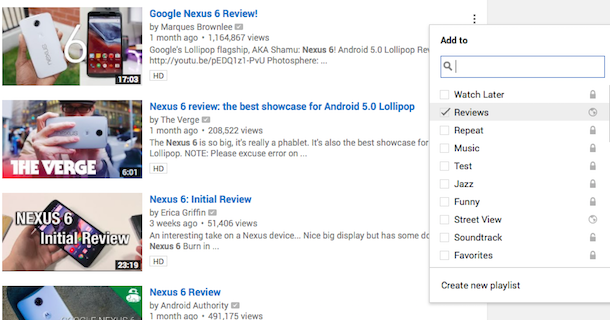
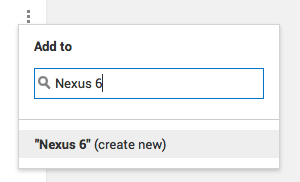
Back in August, I noticed that YouTube added a menu next to search results, so you can add them to playlists. The menu is now even more useful because it has a search box and you can find a playlist faster.


Click the 3-dot icon, type a few characters from the playlist's name and pick the right playlist. You can even use keyboard arrows and press Enter. When you select a playlist, YouTube moves it to the top of the list.

If you want to create a playlist, you can type the name in the search box and select "Create new". Make sure to change playlist privacy setting to "private" or "unlisted" if you don't want to create a public playlist.


Tuesday, December 30, 2014

YouTube's Roboto Experiment

YouTube experiments with switching from Arial to Roboto, a typeface that's already used by many other Google products. Roboto "was designed entirely in-house at Google by Christian Robertson, an interface designer for Google" and it "was released for the first time in 2011 with Android 4.0".

Here's the Roboto font experiment:


... and YouTube's regular interface which uses Arial:


This is a screenshot from Google Docs, which shows a sample text that uses Roboto and Arial:


Here's how you can enable the experimental interface. If you use Chrome, Firefox, Opera, Safari or Internet Explorer 8+:

1. open youtube.com in a new tab

2. load your browser's developer console:

* Chrome or Opera 15+ - press Ctrl+Shift+J for Windows/Linux/ChromeOS or Command-Option-J for Mac

* Firefox - press Ctrl+Shift+K for Windows/Linux or Command-Option-K for Mac

* Internet Explorer 8+ - press F12 and select the "Console" tab

* Safari 6+ - if you haven't enabled the Develop menu, open Preferences from the Safari menu, go to the Advanced tab and check "Show Develop menu in menu bar". Close Preferences and then press Command-Option-C to show the console.

* Opera 12 - press Ctrl+Shift+I for Windows/Linux or Command-Option-I for Mac, then click "Console".

3. paste the following code which changes a YouTube cookie:

document.cookie="VISITOR_INFO1_LIVE=vuYbQD3x-HQ; path=/; domain=.youtube.com";window.location.reload();

4. press Enter and close the console.

To disable the experiment, use the same instructions, but replace the code from step 3 with this one:

document.cookie="VISITOR_INFO1_LIVE=; path=/; domain=.youtube.com";window.location.reload();

{ Thanks, Rubén Gómez. }